A guide from someone who learned this stuff on YouTube at 2am
The 5 Controls in Plain English
Okay, real talk.
When I first saw the Cyber Essentials requirements, I absolutely bricked it. Five controls. Technical names. Official documentation that read like it was written by robots for other robots.
I was nineteen. My entire IT qualification was "Danny's good with computers." I'd learned everything I knew from YouTube tutorials and taking apart my own PC to see what happened.
But here's the thing - once I actually dug into it, I realised these five controls aren't complicated. They're just badly explained. Everywhere you look, it's jargon on top of jargon, written by people who've forgotten what it's like to not know this stuff.
So here's my version. The version I wish existed when I was sitting in my room at midnight, three browser tabs open, trying to figure out what a "secure configuration" actually meant.
Control 1: Firewalls
The jargon: "Boundary firewalls and internet gateways"
The translation: A bouncer for your internet connection.
You know how clubs have someone on the door deciding who gets in and who doesn't? That's your firewall. It sits between your network and the big scary internet, checking everything that tries to come in or go out.
Good stuff? Come on in. Dodgy stuff? Nope. Blocked.
Here's the wild thing - you probably already have one. That router your internet provider gave you? Firewall built in. It's just sitting there, quietly doing its job.
The question is whether it's doing its job well or just running on default settings that haven't been touched since installation. Spoiler alert: at Simpson & Sons, ours hadn't been touched in four years. The password was "Welcome1". Yeah.
What you actually need to do:
- Make sure your router's firewall is switched on (it usually is by default)
- Change the admin password to something that isn't garbage
- Turn off features you're not using - if you don't know what it does, you probably don't need it enabled
- Check if there's a firmware update (there probably is)
That's it. That's the first control. Not scary. Just... actually look at your router for once.
Control 2: Secure Configuration
The jargon: "Secure configuration"
The translation: Don't leave everything on default settings like a muppet.
When you buy a new laptop, phone, or pretty much any device, it comes with settings that prioritise "easy" over "secure." Default passwords. Features enabled that you'll never use. Guest accounts. Auto-connect to any WiFi that looks friendly.
Secure configuration just means: go through your stuff and tighten it up.
I did an audit at Simpson & Sons and found one laptop that still had the default admin account enabled. Anyone who Googled the make and model could've found the password. It was literally on the manufacturer's website.
What you actually need to do:
- Remove or disable accounts you don't use (especially default admin accounts)
- Uninstall software you don't need - every program is a potential way in
- Change default passwords on everything (I cannot stress this enough)
- Disable auto-run features - you don't want things executing automatically when you plug in a USB
- Turn off file sharing if you're not using it
Think of it like moving into a new flat. You wouldn't keep the previous tenant's keys floating around. Same principle.
Control 3: Access Control
The jargon: "User access control"
The translation: Not everyone needs the keys to everything.
This one's about who can access what. And more importantly, who can't.
At Simpson & Sons, we had three laptops and everyone knew everyone's passwords. Kev would use Sandra's login because he'd forgotten his. Sandra would use Mr S's account because it had admin rights and she needed to install something. Total chaos.
Access control means sorting that out. Each person has their own account. Their own password. Access to what they need - and nothing more.
Why does it matter? Because if Kev clicks on a dodgy email (sorry Kev, love you mate), the damage is limited to what Kev can access. If Kev's logged in as an admin with access to everything, one bad click can take down the whole business.
What you actually need to do:
- Give everyone their own user account - no sharing
- Make admin accounts separate from daily-use accounts (this one's important)
- Only give people access to what they actually need for their job
- Remove access immediately when someone leaves (you'd be amazed how often this doesn't happen)
- Use strong passwords - and by strong I mean actually strong, not "Buster1962"
The principle is "least privilege." Fancy way of saying: give people the minimum access they need to do their job. No more.
Control 4: Malware Protection
The jargon: "Malware protection"
The translation: Anti-virus software. You know. The thing.
Malware is the catch-all term for nasty software - viruses, ransomware, spyware, all that lot. Malware protection is the stuff that stops it, catches it, or removes it.
Good news: you probably already have this. Windows 10 and 11 come with Windows Defender built in. It's actually pretty good now - not like the old days when you needed to buy Norton or whatever.
The Cyber Essentials requirement isn't "buy expensive software." It's "have something that's actually running and up to date."
What you actually need to do:
- Check you've got anti-virus software installed and running (Windows Defender counts)
- Make sure it's set to update automatically - new threats appear constantly
- Enable real-time scanning - you want it checking stuff as it happens, not just when you remember to run a scan
- Set up regular automatic scans - daily or weekly
- Don't ignore warnings - if it flags something, deal with it
That's genuinely it. If you've got Windows Defender running with automatic updates, you're probably already sorted for this control. Just double-check it hasn't been turned off.
Control 5: Patch Management
The jargon: "Security update management"
The translation: Actually install the updates instead of clicking "remind me later" for six months.
You know those annoying pop-ups? "Updates available. Restart now?" And you click "later" because you're in the middle of something?
Stop doing that.
Those updates aren't just adding new features or changing the colour of buttons. They're fixing security holes. Holes that hackers know about and are actively exploiting. Every day you postpone that update is another day you're vulnerable to an attack that's already been patched.
At Simpson & Sons, we had one laptop running software that hadn't been updated since 2019. 2019! The security vulnerabilities in that thing... I don't even want to think about it.
What you actually need to do:
- Enable automatic updates on everything - operating systems, browsers, applications
- When an update is available, install it within 14 days (that's the Cyber Essentials requirement)
- For critical security updates, do it faster - like, as soon as you can
- Remove software you're not using - if it's not installed, it doesn't need updating
- Keep a note of what software you've got so nothing slips through the cracks
The 14-day thing is important. Cyber Essentials specifically asks about your process for applying updates. "Eventually" isn't a process. "Within 14 days of release" is.
That's It. Seriously.
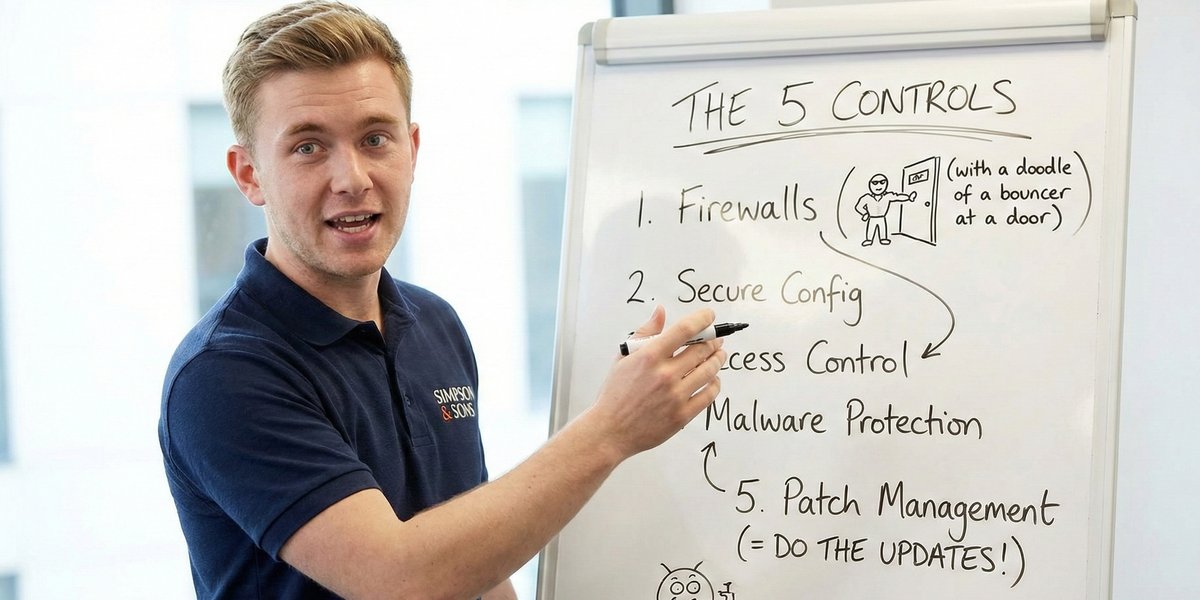
Five controls:
- Firewalls - bouncer on the door
- Secure configuration - tighten up default settings
- Access control - right people, right access, no sharing
- Malware protection - anti-virus running and updated
- Patch management - install the updates
None of this requires a computer science degree. None of it requires expensive consultants. None of it requires enterprise-grade equipment.
It requires attention. It requires actually looking at your systems instead of assuming they're fine. It requires doing the boring maintenance stuff that everyone puts off.
When I started helping Mr S with this, I thought I was out of my depth. Cyber Essentials sounded like something for proper IT professionals, not a teenager who'd taught himself from YouTube.
Turns out, "taught himself from YouTube" was exactly the right qualification. Because I knew how to learn things. How to break down complicated stuff into steps. How to Google error messages and figure out what they meant.
You can do this. Whatever your setup looks like, however small your business is, however little you think you know - you can do this.
The five controls aren't gatekeeping. They're a checklist. Work through it, tick the boxes, get certified.
And if you get stuck? There's probably a YouTube video. Trust me, I've watched them all.
Danny Preece is Head of Technical Sales at Simpson & Sons and an SME Cyber Resilience Consultant with TransCrypt. He would like it noted that he's twenty-two now, has actual certifications, and hasn't introduced himself as "Sandra's son" in at least eighteen months. Progress.
Ready to streamline your compliance?
Join hundreds of fast-growing fintechs building with Transcrypt today.
Join the WaitlistAbout the Author
"We are building the operating system for compliance. Transcrypt removes the ambiguity from regulatory frameworks, turning them into deterministic, executable code."